
If you’ve worked with MetaTrader before, you’ve probably noticed that every time an alert or notification is triggered, the platform plays a default sound. While these sounds can be helpful at first, they can become quite annoying if you spend long hours trading or work in a quiet environment.
As a result, many traders are searching for the answer to this question: How can I turn off the sound in MetaTrader?
In this article, we’ll walk you through the step-by-step process, with images, on how to turn off and manage sound alerts in both MetaTrader 4 and MetaTrader 5.
- You can mute MetaTrader separately using the Windows Volume Mixer, without affecting other apps or the system sound.
- Some brokers offer customised MetaTrader versions with separate sound management for alerts, though this feature is often overlooked.
- You can disable or modify the PlaySound command in MQL code to prevent unnecessary sounds when using expert advisors or custom indicators.
Why Should You Turn Off Sound in MetaTrader?
There are several reasons why traders prefer to disable sound alerts in MetaTrader, including:
- Improved Focus on Analysis: Sudden sounds can be distracting when you’re closely analysing charts and market movements.
- Reduced Stress: Continuous alert sounds in volatile markets can add unnecessary psychological pressure.
- Maintaining a Quiet Work or Home Environment: If you’re trading at work or from home, muting the sound prevents disturbances to those around you.
- More Professional Notification Management: Instead of hearing the default MetaTrader alert sounds, you can use visual alerts or mobile notifications to keep track of important updates.
Turning Off MetaTrader Sound in Settings (MT4 and MT5)
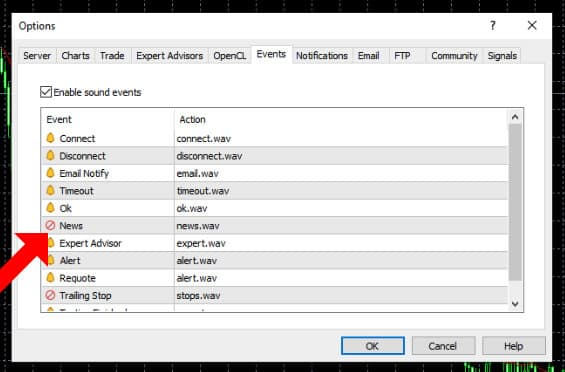
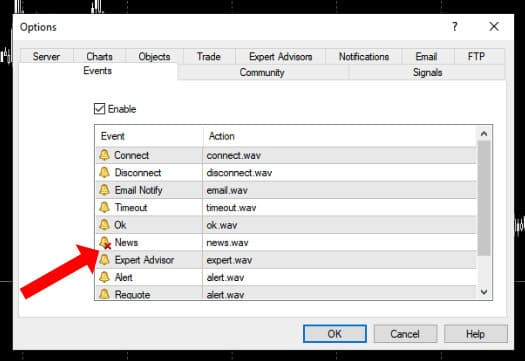
If you’d like to mute all sounds in MetaTrader 4 and MetaTrader 5, simply uncheck the Enable option under Tools > Options > Events.
To mute only certain sounds, follow these steps:
- Double-click on the bell icon next to each event in the Events tab.
- A red cross will appear on the bell icon, indicating that the sound for that event is now disabled.
- To reactivate the sound, simply double-click on the bell icon again to remove the red cross.
- Finally, click OK to save your changes.
This allows you to customise which alerts to mute without affecting others.
Pro Tip:
Customising alert sounds in MetaTrader can significantly improve your trading experience by reducing distractions and tailoring notifications to your preferences.
Managing Sounds via the Sounds Folder in MetaTrader
To add your preferred sounds in MetaTrader 4 and 5, follow these steps:
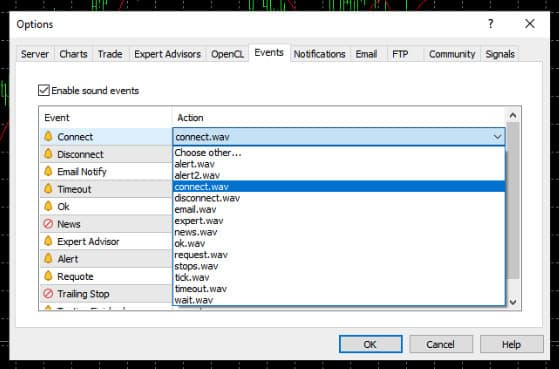
- Go to Tools > Options > Events.
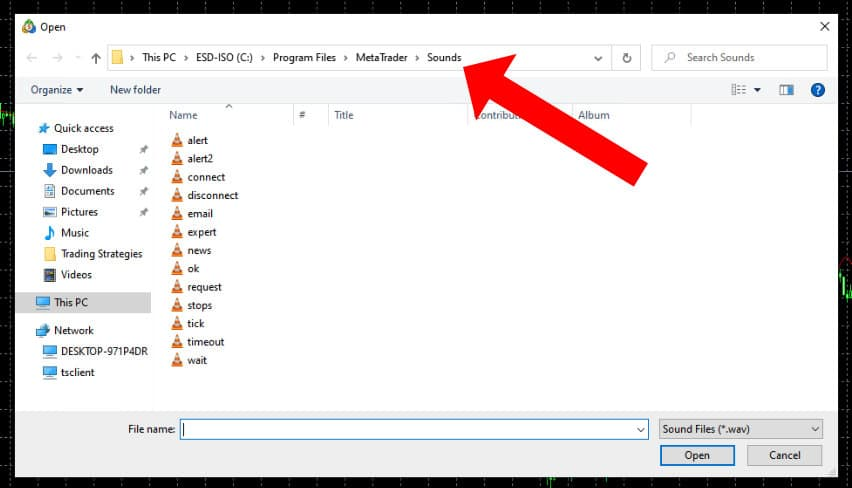
- Double-click on any Action and select Choose other… from the drop-down menu.
- This will open the directory where all the audio files are stored, allowing you to add custom sounds.
This feature provides flexibility in personalising alert sounds according to your preferences.
Q: Can I assign different sounds to alerts for multiple accounts on the same MetaTrader platform?
A: Yes. If you trade multiple accounts on one MT4/MT5 instance, you can assign unique sound files to each account’s events folder. This requires placing separate .wav files in subfolders or using custom EAs that call different PlaySound commands depending on the account. This prevents confusion between accounts and ensures immediate recognition of which account triggered the alert.
Adding a Custom Sound in MetaTrader via the File Manager
To add your custom sound in MetaTrader 4 or 5:
- Open the File Manager and place your new audio file in .wav format into the appropriate folder.
- Restart MetaTrader 4 or 5 to apply the changes.
- To select the new sound, simply follow the same steps outlined in the previous section.
Pro Tip:
If you're using expert advisors (EAs) or custom indicators in MetaTrader, adjust the PlaySound command in the MQL code to prevent unnecessary alerts during automated trading, allowing you to focus on manual analysis without distractions.
Q: Is it possible to mute MetaTrader sounds only during backtesting or strategy testing?
A: Yes. When running Strategy Tester in MT4 or MT5, sounds can be distracting or unnecessary. You can disable them by editing the testing settings or by adding a condition in your EA code to skip the PlaySound function during backtests. This keeps your historical testing silent while retaining sounds during live trading.
Completely Muting MetaTrader Sound from Windows or Mobile Operating Systems
To mute MetaTrader completely from Windows or mobile operating systems, follow these steps:
Muting MetaTrader Sound on Windows
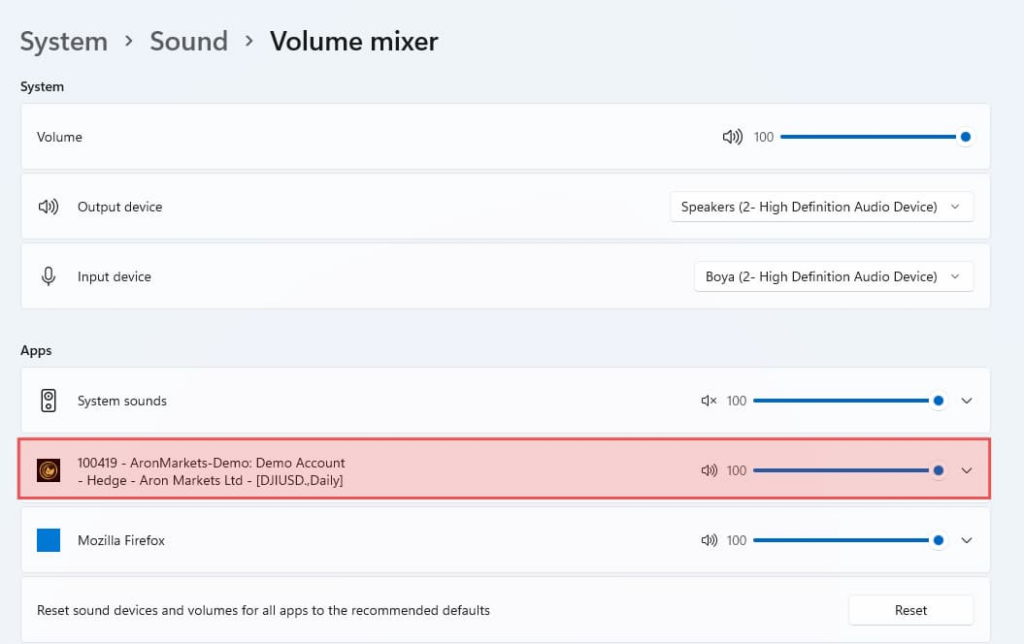
To mute MetaTrader entirely from Windows (not just the alerts within MetaTrader), you can use the Windows sound settings. Follow these steps:
- Open MetaTrader.
- Right-click on the Volume icon in the Taskbar.
- Select Open Volume Mixer.
- In the window that opens, you will see the sound settings for various applications. Scroll down to find MetaTrader.
- Mute MetaTrader by selecting the Mute option or dragging the slider to the lowest setting.
This method will mute MetaTrader’s sound, while the sound from other applications, such as browsers or media players, will remain active.
Muting MetaTrader Sound on Android
To mute MetaTrader sound on Android, follow these steps:
- Go to App Permissions or Notification Settings in your device’s settings.
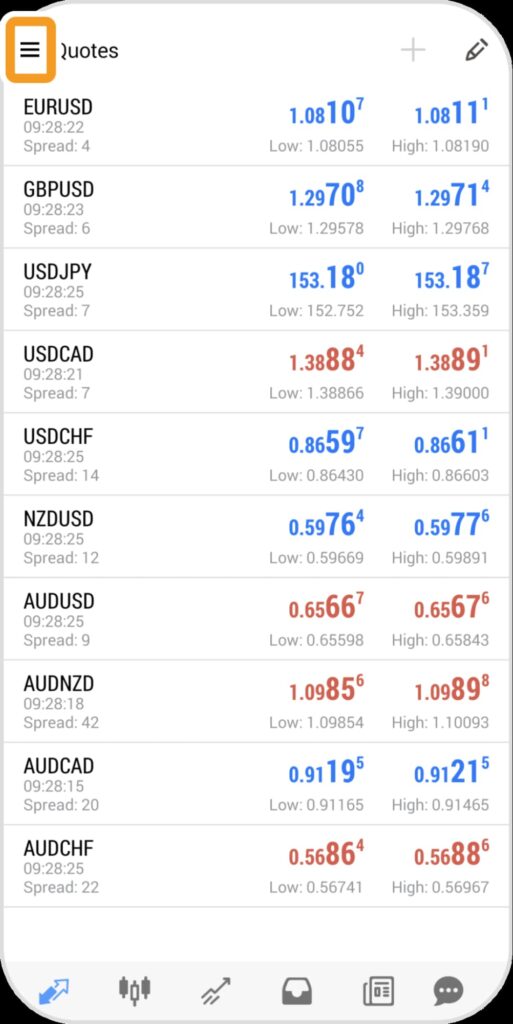
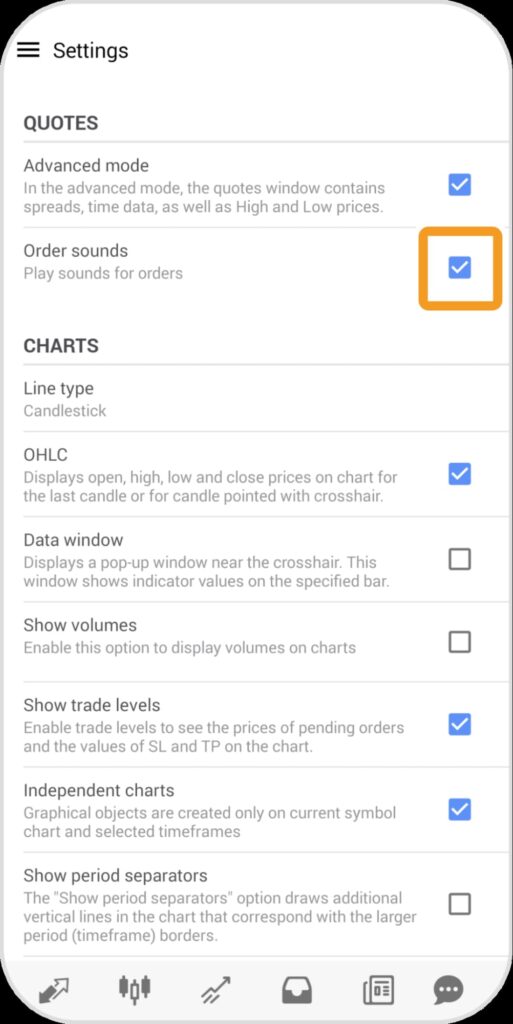
- Disable the sound notifications for MetaTrader by adjusting the settings in the relevant section.
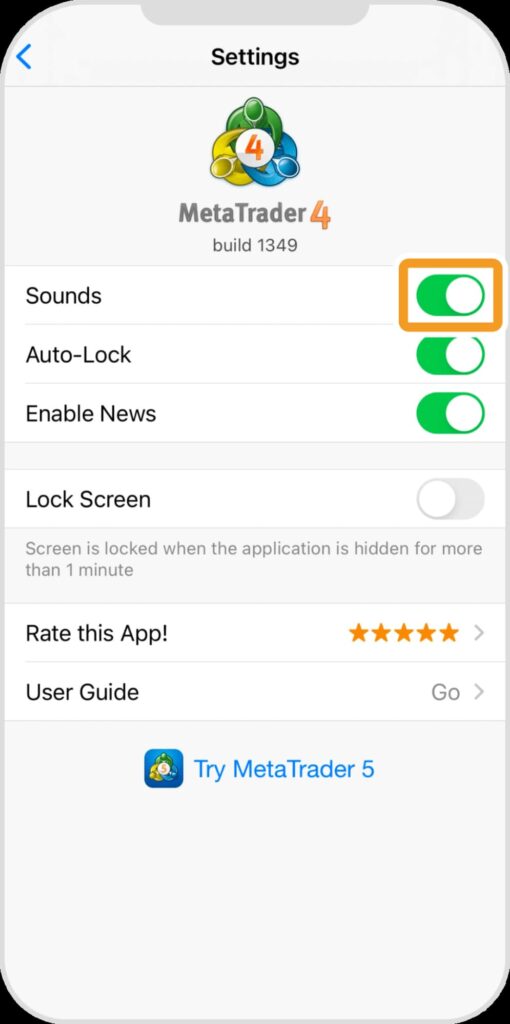
Muting MetaTrader Sound on iOS
To mute MetaTrader sound on iOS, follow these steps:
- Go to Settings > Notifications > MetaTrader.
- Turn off the Sounds option.
Q: What are the main differences between turning off MetaTrader sound on a desktop versus on a mobile device?
َA: The main difference is in control: on desktop, you can manage sound alerts more specifically through MetaTrader or the system’s mixer, while mobile devices have limited customisation, relying on the app’s notification settings and offering push notifications for updates.
If you're using multiple monitors, ensure sound settings are configured correctly across all screens to avoid disruptions from alerts on the primary monitor. Adjust or disable sound alerts for a smoother multi-monitor workflow.

The Best Method for Managing Notifications in MetaTrader
While turning off the sound is a quick solution, the best approach is to manage notifications intelligently:
- Use Push Notifications instead of sound alerts.
- Activate Mobile Alerts instead of desktop alerts.
- Set short and soft custom sounds rather than repetitive loud notifications.
These methods help maintain notifications while preventing auditory disturbance, ensuring a more focused trading experience.
Conclusion
To answer the key question of how to turn off sound in MetaTrader, several options are available:
- Disable sound through MT4 and MT5 settings.
- Manage files in the Sounds folder.
- Turn off sound via Windows or your mobile device.
- Replace sound alerts with visual methods or push notifications.
The choice of method depends on your trading style and environment. If focus is important, turning off sound completely is the best option. However, if you still require alerts, replacing the default sounds with custom, softer ones is a good alternative.