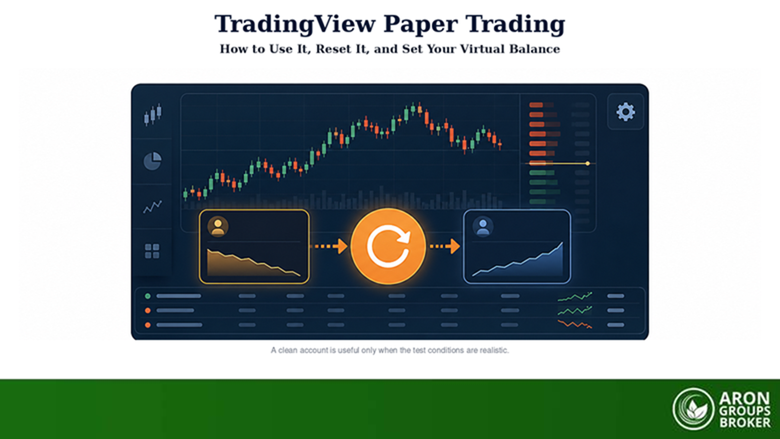

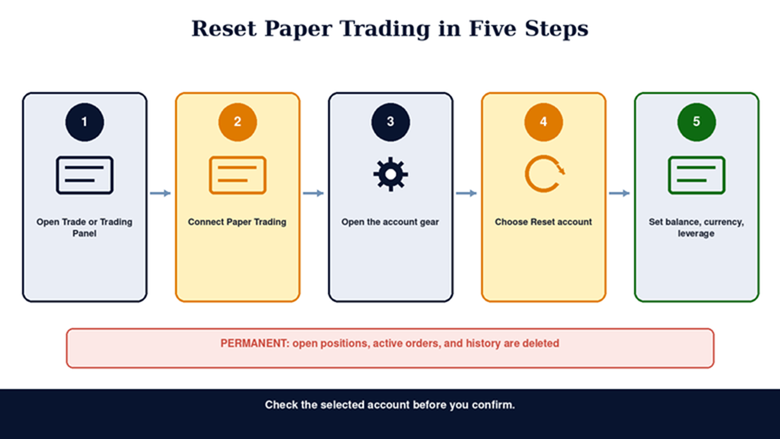
To reset Paper Trading on TradingView, open Supercharts, connect or select Paper Trading, open the account settings using the gear beside the account name, choose Reset account, enter the new balance, currency, and leverage settings, and confirm.
The warning matters: a reset deletes the account’s open positions, active orders, transaction and account history. It cannot be undone. If the history may still be useful, create another Paper Trading account instead of resetting the existing one.
TradingView’s interface can show the entry point in two ways. In the current Supercharts layout, you may see Trade near the top-right. TradingView’s connection guide also describes a Trading Panel at the bottom. Both routes lead to the broker list and the Paper Trading connection. Once Paper Trading is active, the account gear and Reset account control become available.
- Connect or select TradingView Paper Trading before looking for the reset control.
- Open the gear beside the active paper account and choose Reset account.
- A reset can change the virtual balance, account currency, and leverage by asset class.
- Resetting removes positions, orders, and history permanently.
- Match the virtual balance and leverage to the account you realistically expect to trade.
- Paper Trading is a simulator. A broker demo is the better next test for broker-specific execution, margin, spreads, and platform workflow.
The Exact Reset Steps
Follow these steps in order:
Step 1: Open Supercharts
Open Supercharts on TradingView.
Step 2: Find the Trade Entry Point
Click Trade near the top-right, or open the Trading Panel at the bottom if that is what your layout shows.
Step 3: Select and Connect Paper Trading
Select Paper Trading and click Connect if it is not already active.
Step 4: Confirm the Correct Account
Confirm that the correct Paper Trading account is selected, especially if you have created more than one.
Step 5: Open the Account Gear
Click the gear icon beside the account name.
Step 6: Choose Reset Account
Choose Reset account.
Step 7: Set the Balance and Currency
Enter the starting virtual balance and select the account currency.
Step 8: Review the Leverage
Review the leverage for each asset class.
Step 9: Confirm the Reset
Confirm only after checking the deletion warning.
Risk Warning: Resetting is permanent. It deletes open positions, active orders, and account history. Paper Trading also cannot reproduce every live-market condition. Simulated fills may differ from actual execution because liquidity, slippage, latency, spreads, commissions, margin rules, and trader emotion can change the result. This material is educational and is not investment advice. |
What TradingView Paper Trading Is
Paper Trading is TradingView’s built-in trading simulator. It lets you place market and pending orders with virtual funds while using Supercharts, indicators, drawings, chart trading, the order ticket, and Depth of Market where available.
No deposit or credit card is required for the simulator. TradingView describes it as available to all users and designed for risk-free practice. “Risk-free” refers to real money. It does not mean the strategy itself has been validated or that simulated profit will transfer to a live account.
TradingView Paper Trading is separate from:
- A demo account issued by a connected broker;
- Bar Replay trading on historical data;
- A Pine Script strategy report or backtest;
- A live brokerage account connected through TradingView.
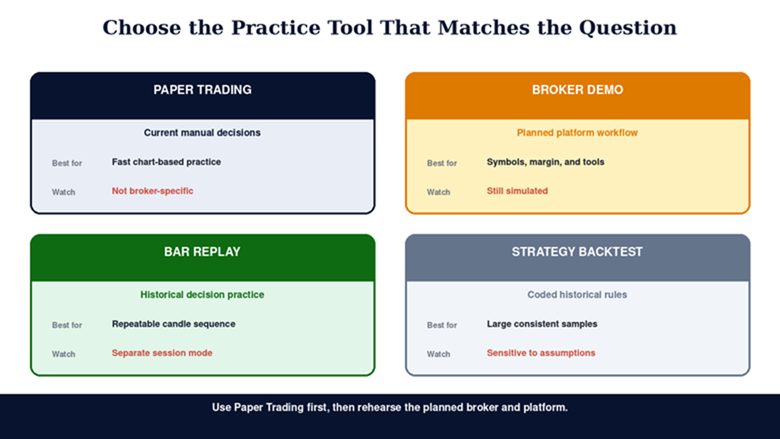
The distinction matters because each tool answers a different question. Paper Trading tests manual decisions in current market conditions. Bar Replay tests decisions against a historical sequence. A strategy backtest applies coded rules to past data. A broker demo tests the planned broker and platform environment with virtual funds.
Risk Disclosure
CFDs are complex instruments and come with a high risk of losing money rapidly due to leverage. You should consider whether you understand how CFDs work and whether you can afford to take the high risk of losing your money. Past performance is not indicative of future results. This content is provided for educational purposes only and does not constitute investment advice.
How to Connect Paper Trading
From Supercharts, open Trade or the bottom Trading Panel, select Paper Trading, and click Connect. Once connected, the account manager shows positions, orders, history, account history, and the trading journal.
You can place trades through:
- The order ticket;
- Chart trading;
- Buy and Sell controls when enabled;
- Depth of Market for supported symbols and workflows.
If you only see a connected broker, open the trading menu and return to the broker list. Select TradingView’s own Paper Trading account rather than the broker’s demo connection.
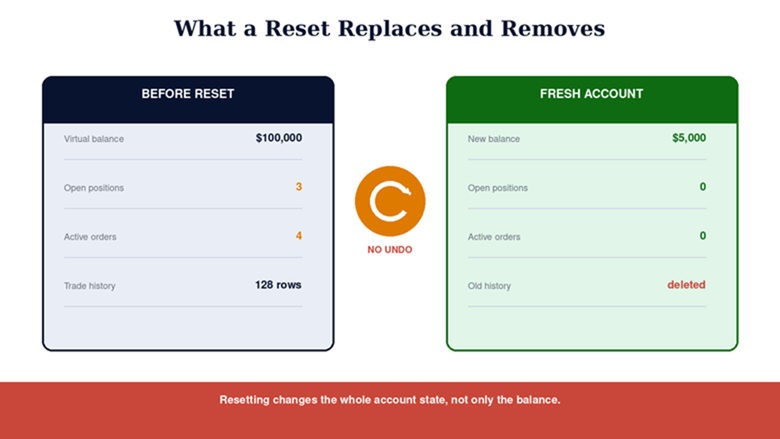
What a Reset Changes and Deletes
The Reset account dialogue gives you a new starting point, but it does not preserve the previous experiment.
| Item | What happens on reset |
|---|---|
| Virtual balance | Replaced with the new amount you enter |
| Account currency | Can be changed to another supported currency |
| Leverage | Can be set by asset class |
| Open positions | Deleted |
| Active orders | Deleted |
| Transaction and account history | Deleted |
| Undo or recovery | Not available |
TradingView’s standard Paper Trading account has commonly started with USD 100,000 and predefined leverage values, but the reset dialogue lets you choose a balance that is more useful for your test. Account defaults and interface labels can change, so treat the settings shown in your own dialogue as the final source of truth.
Resetting replaces the account state, not just the balance: positions, orders, and history are removed with no undo.
Set a Realistic Starting Balance
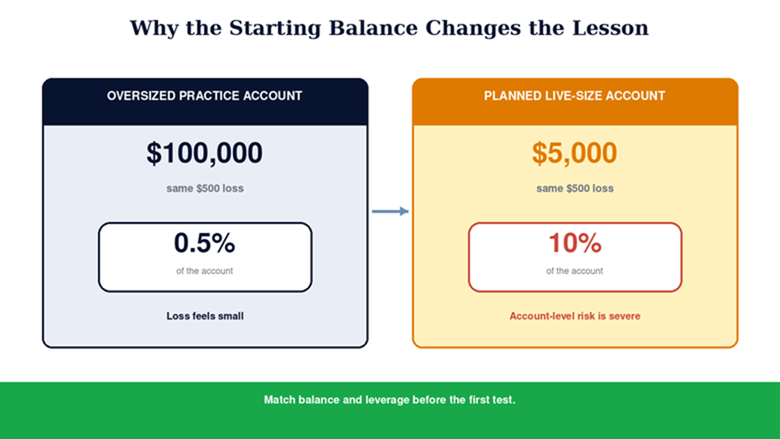
The default USD 100,000 balance is convenient for exploring the platform, but it can make practice misleading if the intended live account is much smaller.
Suppose a trader plans to fund USD 5,000 but practises on USD 100,000. A USD 500 position loss feels like only 0.5% in the simulator. On the intended account it would be 10%. The same order can therefore teach a completely different risk habit.
A useful paper account should match:
- The expected live starting balance;
- The intended base currency;
- Realistic leverage for the asset class and jurisdiction;
- The planned commission and spread assumptions;
- The same maximum risk per trade and daily loss limit.
If the live amount is uncertain, create several paper accounts with different balances rather than changing one account repeatedly. Separate accounts can also isolate strategies, asset classes, or rule sets without mixing their histories.
Read More: Capital preservation principles for sizing a live account
A realistic virtual balance makes percentage risk transferable; an oversized paper account can hide the impact of ordinary losses.
Configure Currency and Leverage
TradingView lets you choose from supported fiat and crypto account currencies. All profit, loss, and commission calculations are then expressed in that currency.
Leverage can be set separately for asset classes. Higher leverage reduces the margin needed to control a position, but it does not reduce the position’s market risk. It makes oversizing easier.
For useful practice:
- Copy the leverage you genuinely expect to have, not the maximum the simulator permits;
- Check the order information before submitting;
- Size the trade from the stop distance and risk budget;
- Record whether margin or leverage changed the decision.
If the only purpose of the reset is to change leverage, first check the account gear. TradingView allows leverage to be edited in account settings without necessarily deleting history.
When Resetting Makes Sense
Resetting is useful when the existing history no longer belongs to the experiment you want to run.
Good reasons include:
- Beginning a new strategy with a clean baseline;
- Correcting an unrealistic starting balance;
- Changing the account currency;
- Removing accidental test orders before a structured challenge;
- Standardising several traders on the same starting conditions.
Resetting is usually a poor choice when:
- You have not reviewed the losing period yet;
- The history contains useful evidence about execution mistakes;
- You are resetting simply to erase an uncomfortable drawdown;
- You want to compare old and new rules.
In those cases, export or review the data and create a separate Paper Trading account. A clean result is useful only when it represents a cleanly defined test, not when it hides earlier performance.
A Better Paper Trading Experiment
After the reset, write the test conditions before placing the first order.
Define the Strategy
State the market, timeframe, entry, stop, target, trading hours, maximum number of trades, and conditions that cancel a setup. “I will trade what looks good” cannot be evaluated.
Define the Risk
Set the maximum percentage or cash loss per trade, maximum daily loss, and maximum simultaneous exposure. If the account can take unlimited size, the simulator may reward habits that would be impossible or reckless live.
Read More: Building a risk management strategy before going live
Define the Sample
Choose a minimum number of trades or a fixed testing period. Ten trades are rarely enough to distinguish skill from noise. Keep the rules unchanged during the sample, then review.
Review Process, Not Just Profit
Track rule adherence, missed stops, late entries, position-size errors, time of day, and the difference between planned and realised risk. Profit is the outcome. The test is trying to identify whether the process can be repeated.
Read More: Why professional traders track process, not just profit
How to Use Paper Trading After the Reset
Once connected and configured:
- Choose the symbol and timeframe;
- Open the order ticket or use chart trading;
- Select market, limit, stop, or another supported order type;
- Enter quantity and protective levels;
- Review order information and margin;
- Submit the order;
- Monitor it under Positions and Orders;
- Review completed activity under History, Account history, and the Trading journal.
Do not change the balance after a loss just to keep trading. If the test reaches its predefined loss limit, stop and review exactly as you would with real capital.
Paper Trading, Broker Demo, and Backtesting
No single practice tool is the most realistic for every question.
| Tool | Best question | Main strength | Main limitation |
|---|---|---|---|
| TradingView Paper Trading | Can I follow this manual plan in current markets? | Fast chart-based practice with virtual funds | Does not reproduce a specific broker's full execution environment |
| Broker demo account | Can I execute through this broker and platform? | Broker-specific platform, symbols, margin, and workflow | Demo fills and emotions still differ from live trading |
| Bar Replay | How would I react as historical candles unfold? | Repeatable historical manual practice | Session results and available data behave differently from current paper trading |
| Strategy backtest | How did coded rules perform across historical data? | Large samples and consistent rules | Sensitive to data quality, assumptions, costs, and overfitting |
Use the simulator that matches the question: current manual practice, broker execution rehearsal, historical replay, or coded backtesting.
Why a Broker Demo Is the Next Step
TradingView states that it acts as an interface when you connect a broker. It does not become the broker or process the broker’s live trades itself. That is why TradingView Paper Trading and a broker demo should not be treated as identical.
A broker demo is more useful for checking:
- The exact symbols and contract specifications;
- Account-specific leverage and margin;
- Spreads and commissions shown by the broker;
- The order types and platform workflow you plan to use;
- Expert Advisors or platform-specific tools;
- Operational details such as market hours and minimum volume.
Demo execution is still simulated, so it does not prove what live slippage or emotional pressure will be. It is simply a more specific rehearsal.
TradingView Paper Trading Not Working: Troubleshooting
Work through whichever of these matches what you are seeing:
The Reset Option Is Missing
Confirm that Paper Trading is connected and selected. The gear and reset controls belong to the active paper account. If a live broker or broker demo is selected, its settings will be different.
If you have multiple paper accounts, switch to the intended account and open its gear. Do not assume the account shown first is the one you want to reset.
You Cannot Find the Trading Panel
TradingView currently documents both a top-right Trade button and a bottom Trading Panel, depending on layout and interface version. Open Supercharts and use whichever trading entry point is visible, then select Paper Trading from the broker list.
You Are in Bar Replay
Replay Trading is a separate mode. It has its own starting capital and session controls. Exit Bar Replay before trying to manage the regular Paper Trading account.
The Interface Appears Stuck
Refresh the browser tab or relaunch the desktop application. On TradingView Desktop, update the app first. If broader interface problems continue, TradingView’s desktop guidance includes clearing the app cache under Settings > Service > Clear cache, followed by a relaunch. Cache clearing is general troubleshooting, not a guaranteed fix for a missing reset control.
You Are in The Leap Competition
The Leap uses competition accounts with fixed rules. TradingView states that those accounts cannot be reset. Return to the normal Paper Trading account for a configurable balance.
The Problem Is a Connected Broker's Paper Account
Some brokers provide their own paper credentials and activation rules. A closed, inactive, or not-yet-created broker demo must be resolved with that broker. It is not the same account as TradingView’s built-in Paper Trading simulator.
Honest Limitations of Paper Trading
Paper Trading is excellent for learning the interface and measuring rule adherence, but it is not live execution.
Potential differences include:
- Fills at prices that may not have been available for the full order size;
- Simplified slippage and latency;
- Incomplete replication of broker spreads, commissions, swaps, and margin calls;
- Delayed or entitlement-dependent market data for some exchanges;
- No real financial pressure, which changes decision-making;
- Selection bias when the trader resets after losses or changes rules mid-test.
The CFTC warns that hypothetical or simulated results do not represent actual trading and may overstate or understate the impact of factors such as liquidity. Treat a profitable paper account as evidence that the process deserves a more realistic test, not as proof of future returns.
Where Aron Groups Fits
If the intended execution platform is MetaTrader 5, move from TradingView Paper Trading to an Aron Groups demo account before considering live capital. Recreate the same starting balance, risk limits, symbols, and strategy rules as closely as possible.
That second stage tests the MT5 workflow, contract details, and broker-specific account environment. Review a meaningful sample, then decide whether the process is stable enough to continue. Availability and account conditions depend on jurisdiction and eligibility, so confirm the current terms directly.
Read More: Starting live with a nano account
Conclusion
Resetting TradingView Paper Trading takes only a minute. The useful part is deciding what the new account will measure.
Connect Paper Trading, open the gear beside the correct account, choose Reset account, set the balance, currency, and leverage, and confirm only after accepting that positions, orders, and history will be deleted.
Then make the account realistic. Match the planned capital, define the rules, preserve the full sample, and use the result to decide what to test next. TradingView Paper Trading is a strong first laboratory. A broker demo is the next rehearsal. Neither removes the risk of live leveraged trading.
Frequently Asked Questions
Does TradingView have paper trading?
Yes. TradingView provides a built-in simulator called Paper Trading. It uses virtual funds and can be connected from Supercharts through the Trade button or Trading Panel.
Is TradingView Paper Trading free?
TradingView describes Paper Trading as available to all users with no deposit or broker fee required for the simulator. Some exchange market data may still depend on data entitlements or subscription level.
What is the default TradingView paper balance?
The standard account has commonly started with USD 100,000. You can enter a different starting balance when resetting or creating an account. Use the amount shown in your current dialogue as the authoritative default because platform settings can change.
Can I recover trades after a reset?
No. The reset is permanent and has no undo. Open positions, active orders, and history are deleted.
Can I change leverage without resetting?
Yes. TradingView’s account settings allow leverage to be changed by asset class. Open the gear beside the account name and review the settings before choosing a destructive reset.
Why can I not see Reset account?
The most common reason is that TradingView Paper Trading is not the active connection. Connect or select it, verify the correct paper account, and open the gear beside that account.
Is Paper Trading the same as Bar Replay?
No. Paper Trading follows current market conditions with a persistent virtual account. Replay Trading is a separate historical session with its own starting capital and settings.
Is a broker demo more realistic?
It is more specific to the broker, platform, symbols, margin, and workflow you plan to use. It is still simulated and cannot fully reproduce live fills, slippage, or emotion.