
icon icon Home
icon icon Accounts
icon icon Quick start
icon icon Symbols

Mobile Trading Setup: From Installing the App to Placing Your First Trade Safely

Author
Abe Cofnas
Abe Cofnas
calendar Last update: 27 July 2026
watch Reading time: 8 min

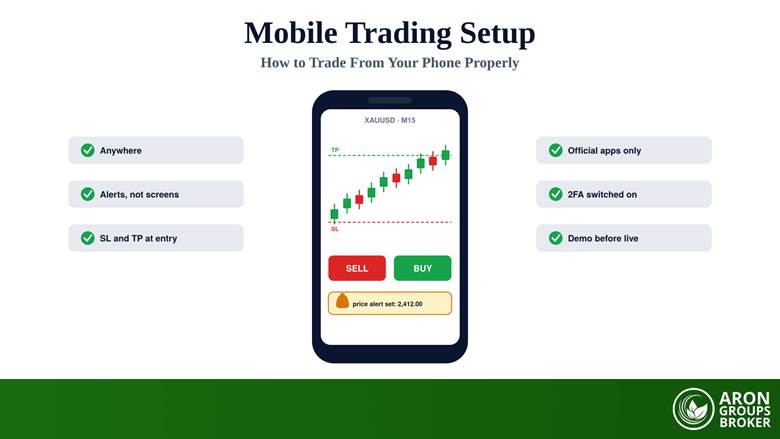
A mobile trading setup is the combination of a broker account, a mobile platform such as MetaTrader 5, and the settings you configure around them: watchlists, alerts, default sizes, risk rules, and security. Mobile trading itself simply means buying and selling financial instruments from a smartphone or tablet, and the barrier to entry is genuinely low, since all you need is a phone and an internet connection. The difference between trading from a phone and trading from a phone properly is everything this guide covers after the installation step.

Done well, a mobile setup lets you monitor positions and act on opportunities from anywhere, which is a real advantage in a market that does not keep office hours. Done casually, it turns every notification into a temptation and every pocket into a trading floor, which is how phones quietly become the most expensive device their owners carry.

This guide walks through what you need before you start, the exact installation and login steps for Android and iOS, the settings most guides skip, placing a first trade with protection attached, the honest limitations of a small screen, a mobile versus desktop comparison, security against fake apps and public networks, and the psychology risks that are specific to a market you carry in your pocket.

bookmark
Key Takeaways
  • A mobile setup is more than an app: it is the platform, the alerts, the default sizes, the risk rules, and the security settings configured together.
  • Install only from official stores or the broker's own page, log in with your account number, password, and the correct server name, and rehearse on a demo first.
  • Because a phone shows one chart at a time, price alerts, safe defaults, and confirmation screens do the work that multiple monitors do on desktop.
  • Mobile excels at monitoring and quick execution; precise measurement and multi-chart analysis belong on desktop, and serious traders combine both.
  • Attach the stop loss and take profit at entry, keep one-tap trading off at first, and treat notifications as information, not instructions.

What You Need Before You Start

Four things, and the fourth is the one people forget. You need a broker account that has passed verification, a funded trading account with its login number and password, the platform app itself, and the broker’s exact server name, because the same app serves thousands of brokers and logs you into nothing without the right server selected. If you are brand new to the mechanics, our guide on how to trade forex covers the foundations; this article assumes them and focuses on the phone.

sms-star

Risk Disclosure

CFDs are complex instruments and come with a high risk of losing money rapidly due to leverage. You should consider whether you understand how CFDs work and whether you can afford to take the high risk of losing your money. Past performance is not indicative of future results. This content is provided for educational purposes only and does not constitute investment advice.
Step-by-Step: Installing and Logging In

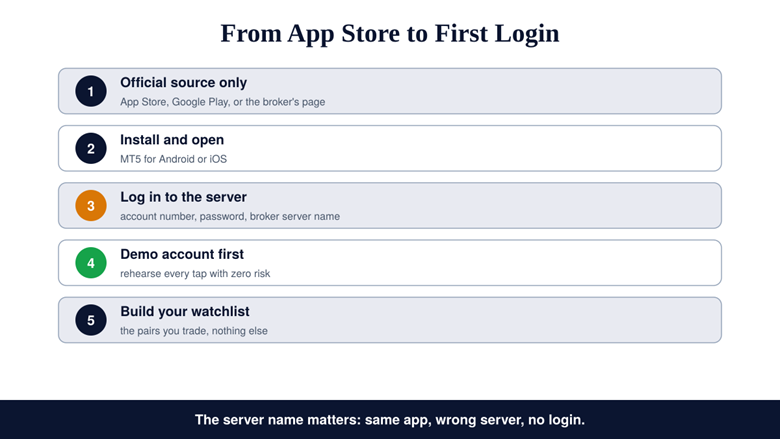
The whole installation takes five minutes, and four of them are the login. Follow the sequence in order; the server step is where nearly every failed first login happens.

Step 1: Download From an Official Source Only

Get the app from the App Store on iOS, Google Play on Android, or the download links on your broker’s own website. Never sideload an APK from a forum or a Telegram link; fake trading apps are a real and common attack channel.

Step 2: Install and Open the App

MetaTrader 5 installs like any other app and opens onto a default chart. Nothing you tap at this stage risks money, because no account is connected yet.

Step 3: Log In With Account, Password, and Server

Choose the option to log in to an existing account, search for your broker’s server name exactly as given in your account email, then enter your account number and password. A correct password on the wrong server still fails, which is the single most common setup complaint.

Step 4: Add a Demo Login First

Before the live account, connect a demo account and rehearse everything: opening, modifying, and closing positions, setting alerts, finding the Trade tab. Every mistake you make here is free.

Step 5: Build a Watchlist That Matches Your Trading

Strip the default symbol list to the instruments you actually trade. On a small screen, every unnecessary row is a scroll between you and the position that matters.

Step-by-Step: Installing and Logging In

The Settings Most Guides Skip

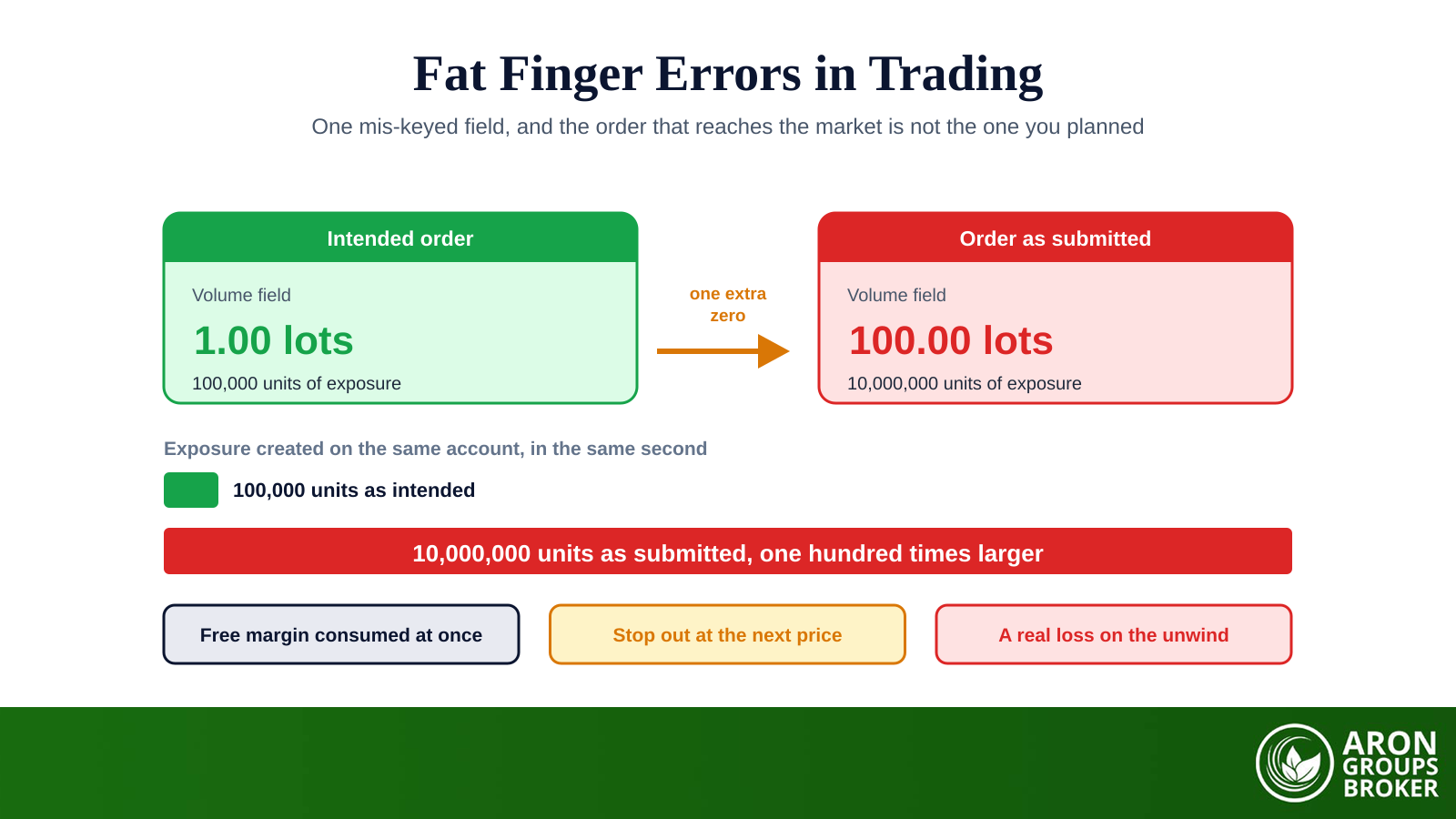
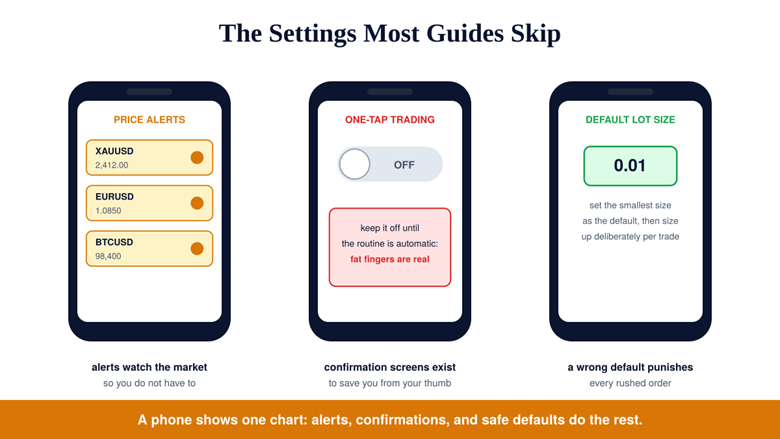
Installation is the easy half; configuration is where a phone becomes a trading tool. Set your chart layout and the two or three timeframes you actually use, so switching is a tap rather than a menu dive. Decide deliberately about one-tap trading: it executes instantly without a confirmation screen, which is precisely why it should stay off until your routine is automatic, because fat-finger errors on a touchscreen are not a hypothetical. Set the default lot size to the minimum and size up consciously per trade using proper position sizing, never the other way around.

The Settings Most Guides Skip

Above all, configure price alerts, because they are the honest answer to the phone’s defining limitation: the screen cannot show several charts at once. An alert at your level turns the phone into a scout that watches the market for you and calls only when something you planned for actually happens. Traders who set alerts check their phones when it matters; traders who do not, check them constantly.

sms-star

Rule: Alerts before charts. If your mobile routine is staring at one chart waiting for a level, you have recreated the worst part of desk trading on a worse screen. Set the alert, put the phone away, and let it interrupt you.

Placing Your First Trade Properly

From the chart or the quotes list, open a new order. A market order executes now at the current price; a pending order waits at the level you choose, which suits plans made in advance. The non-negotiable habit is attaching the stop loss and take profit at entry, in the same order ticket, rather than planning to add them afterwards, because afterwards is exactly when a moving market and a slow thumb collide. Your stop distance and a fixed risk-to-reward ratio decide the size, and the Trade tab then shows the open position, its floating profit, and the attached levels, which is where you confirm the order did what you intended.

Order typeWhat it doesMobile habit
Market orderExecutes now at the current priceKeep for managing open positions quickly
Buy or sell limitWaits to enter at a better pricePlace calmly in advance with SL and TP attached
Buy or sell stopWaits to enter on a breakoutSuits planned momentum entries, not chases
Stop lossCloses the trade at your maximum lossAttach at entry, in the same ticket, always
Take profitCloses the trade at your targetAttach at entry; do not negotiate later

Five order types cover mobile trading; the habit column is what keeps a touchscreen honest.

Q: Should I use market orders or pending orders on mobile?

A: Pending orders suit mobile particularly well. They let you make the decision calmly in advance, place the level, attach the protection, and let execution happen without you racing a touchscreen in the moment. Market orders on mobile are best kept for managing existing positions quickly.

Connection, Speed, and Execution

Order speed depends on your connection before it depends on anything else. The faster your order reaches the server, the more likely it fills at the price you intended; a weak signal means slipped or missed entries, and the difference is largest exactly when markets move fast. A stable 4G or 5G connection or trustworthy Wi-Fi is part of the setup, an unlimited or generous data plan removes one background worry, and if you know your signal is patchy, prefer pending orders with protection attached over live-managing positions through a stuttering connection.

The Honest Limitations of Mobile

Mobile is best used for monitoring and quick execution, not as your primary analysis workstation, and the reasons are physical before they are technical. A small screen limits multi-chart analysis and side-by-side comparison, deep indicator work is cramped, and there is a detail almost no guide mentions: on some iOS versions the chart crosshair is not fully precise, and touch input causes selection errors on zoomed-out charts, so measurement work such as precise level placement is genuinely harder on the phone. Do the analysis and the measuring on desktop, and let the phone carry the plan. Serious traders treat the two as a team rather than rivals, the same way a systematic process separates research from execution.

The Honest Limitations of Mobile

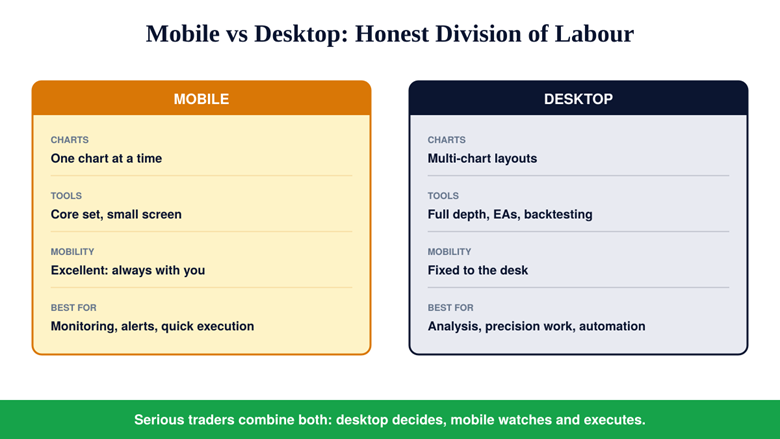
The division of labour that works: desktop for analysis and automation, mobile for monitoring and the quick, planned action.

DimensionMobileDesktop
ChartsOne at a time, small screenMulti-chart layouts and multiple monitors
Indicators and toolsCore set, cramped for deep workFull depth, templates, precise drawing
AutomationNo expert advisorsEAs, scripts, and backtesting
Alerts and mobilityExcellent: always with youFixed to the desk
ExecutionQuick for planned actionsPrecise for complex orders
Best forMonitoring, alerts, quick executionAnalysis, measurement, automation

Most serious traders combine both: the desk decides, the phone watches and acts.

Security and Scam Awareness

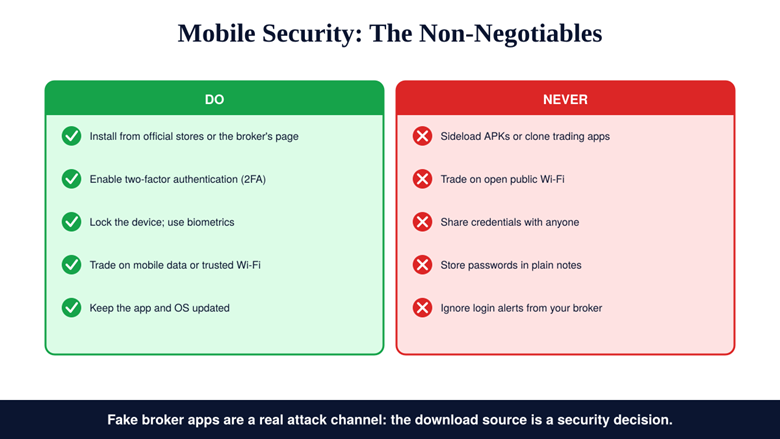
A phone that can move money deserves the same care as a wallet that holds it. Install only from official app stores or the broker’s own download page, because clone apps dressed as brokers or platforms are a standing attack channel. Enable two-factor authentication on both the broker account and the email behind it. Avoid trading over open public Wi-Fi, where traffic can be observed; mobile data is safer. Lock the device with biometrics, keep the app and operating system updated, and never share account credentials with anyone, including anyone claiming to be support. Regulators’ advisories on retail forex trading are blunt that fraud prevention starts with verifying who and what you are connecting to.

Security and Scam Awareness

The download source, the second factor, and the network you trade on are security decisions, not conveniences.

The Pocket Problem: Mobile Psychology Risks

The phone’s greatest strength is the risk nobody configures for: it removes friction. Push notifications arrive as tiny urgencies, and each one is an invitation to an impulsive, unplanned entry; the walk to a desk that once separated a feeling from a trade is gone. The result, documented across retail trading generally, is overtrading, and the base rates are unforgiving: European regulators found the large majority of retail accounts lose money on leveraged products, and US investor-education guidance on leveraged strategies stresses that amplified exposure amplifies mistakes made in haste. The fixes are structural: pre-set alerts that only fire on planned levels, a written plan the phone merely executes, fixed sizing that no notification can inflate, and disciplined risk management that treats the phone as a terminal, not an adviser.

Mini Example: Two Notifications, Two Traders

A price alert fires: gold has reached 2,412.00, the level in the plan. Trader A opens the app, places the pending order written in the plan, attaches the stop and target, and puts the phone away. Total screen time: ninety seconds.

A news notification fires: gold is moving. Trader B opens the app, sees a big candle, and buys at market so as not to miss it, no stop attached because the move is happening. One of these traders configured a mobile setup; the other installed an app.

Setting It Up With Aron Groups

The practical version takes an evening. Install MetaTrader 5 for Android or iOS from the official store, log in with your Aron Groups account number and the Aron server from your welcome email, and connect a demo account first to rehearse the full routine at zero cost.

When the routine is automatic, log in to the live account, keep the default lot at the minimum, and size deliberately. A small account with micro volumes keeps early lessons cheap while the habits form, and a smooth equity curve, not a lucky week, is the sign the setup is working, on any screen, large or small.

Conclusion

A mobile trading setup is not the app; it is the discipline installed around the app. The installation takes five minutes: official store, correct server, demo first. The setup takes a little longer: alerts at planned levels, protection attached at entry, one-tap off, the smallest default size, two-factor authentication on, and a clear understanding of what the small screen does well and what it does badly.

Treat the phone as the terminal that executes a plan made elsewhere and it becomes the most useful device you own: the market in your pocket, on your terms. Treat it as an adviser that whispers through notifications and it will quietly cost you more than any spread. The difference is configuration, and capital preservation is the setting that matters most; that, not the device, is what separates a professional trader from a passenger.

Frequently Asked Questions

Quick answers to the questions readers ask most about trading from a phone, in one place.

What do I need to trade on my phone?

A verified broker account, a funded trading account with its login number and password, the platform app such as MetaTrader 5 installed from an official source, and the broker’s exact server name. A stable internet connection completes the setup.

How do I set up MT5 on Android or iPhone?

Install MetaTrader 5 from Google Play or the App Store, open it, choose to log in to an existing account, search for your broker’s server name, and enter your account number and password. Connect a demo account first and rehearse before logging in to the live account.

Is mobile trading as good as desktop trading?

They are good at different things. Mobile wins on mobility, alerts, and quick execution of planned actions; desktop wins on multi-chart analysis, precise drawing, indicator depth, and automation. Most serious traders analyse on desktop and monitor and execute on mobile.

Is trading on a phone safe?

It is as safe as the setup behind it. Install only official apps, enable two-factor authentication, avoid open public Wi-Fi, lock the device, and never share credentials. The trading risk itself is unchanged by the device, which is why stops, sizing, and a written plan matter on every screen.

Continue Reading
not-found
calendar 27 July 2026
Rate this article

Leave a Reply

Your email address will not be published. Required fields are marked *

No thanks